This article explains how SecureSchool can support Wi-Fi authentication using Google Workspace credentials.
Because Google Workspace does not support direct RADIUS authentication, SecureSchool uses Google Secure LDAP along with a SecureSchool authentication page to generate a wireless password that can be used for enterprise Wi-Fi authentication.
✅ Requirements (Before You Start) #
To use this feature, you will need:
-
A SecureSchool appliance with one of the following add-ons:
- WirelessTrakker: Universal Wireless Support
- WirelessTrakker: Ubiquiti Controller and Wireless Support
- Google Workspace admin access (to enable Secure LDAP and download the certificate ZIP)
- A wireless environment that supports WPA2/WPA3 Enterprise (802.1X / RADIUS)
- If staff and student SSIDs are separated into VLANs, the network may be configured for VLAN trunking
Note: Wi-Fi authentication can be configured per SSID.
For example, a school may choose to enable enterprise authentication on a Staff SSID, while leaving a Student SSID configured with a different authentication method.
🔎 How It Works #
- Enable Google Secure LDAP in Google Workspace.
- Download the LDAP certificate ZIP file generated by Google.
- Upload the ZIP file into SecureSchool under Setup → Auth Method → GSuite Auth.
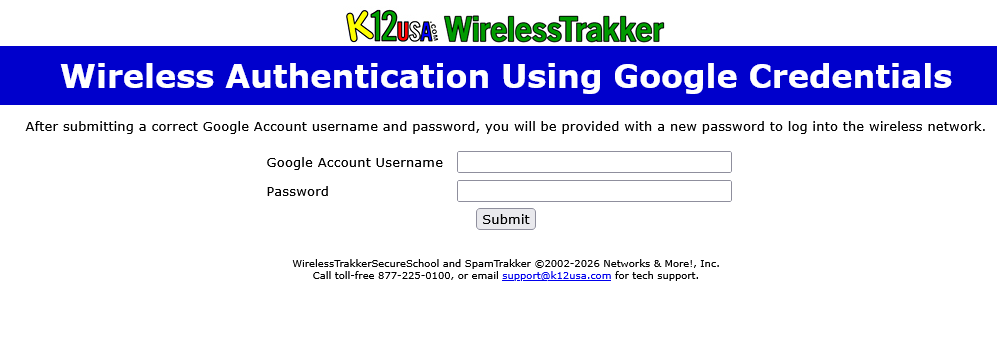
- SecureSchool provides a Wireless Authentication Using Google Credentials login page.
- Users sign in with their Google Workspace credentials.
- SecureSchool generates a password that can be used to connect to an Enterprise Wi-Fi SSID using WPA2/WPA3 Enterprise (RADIUS).
⚙️ Step 1 — Enable Google Secure LDAP #
Log into your Google Workspace Admin Console and enable Secure LDAP.
Follow Google’s official instructions:
After enabling the service, download the ZIP package that Google generates.
Note: Keep the file as a ZIP — SecureSchool expects the ZIP package exactly as provided by Google.
⚙️ Step 2 — Upload the Google LDAP ZIP into SecureSchool #
- Log into the SecureSchool Administrator Interface.
- Navigate to Setup → Auth Method → GSuite Auth.
- Locate the Manage Google LDAP Files section.
- Click Choose File.
- Select the Google Secure LDAP ZIP file.
- Click Upload Zip File.
After uploading the file, verify that the Certificate Status section displays valid start and expiration dates.
If the certificate status still shows Not Available, download a fresh ZIP from Google and upload it again.
⚙️ Step 3 — Configure Wireless Authentication in SecureSchool #
When using WirelessTrakker add-ons, wireless configuration is managed directly within the SecureSchool appliance. This includes SSID configuration, VLAN assignment, and RADIUS authentication.
Relevant configuration areas within SecureSchool include:
- Setup → VLAN Trunking — used to configure VLANs that may be assigned to wireless SSIDs
- User Auth → Radius Auth — used to configure RADIUS authentication services
If your deployment uses multiple SSIDs (for example, separate networks for staff and students), each SSID can be mapped to a specific VLAN and configured to use the appropriate authentication method.
For SSIDs that will use enterprise authentication, configure the following settings within your WirelessTrakker configuration:
- Security: WPA2-Enterprise or WPA3-Enterprise (802.1X)
- Authentication Server: SecureSchool RADIUS
You can choose which SSIDs use enterprise authentication based on your local network design and access policies.
👩🏫 How Users Connect #
- Users browse to SecureSchool’s Wireless Authentication Using Google Credentials page (see screenshot below).
- They sign in using their Google Workspace username and password.
- SecureSchool generates a Wi-Fi password.
- The user enters that password when connecting to the SSID configured for WPA2/WPA3 Enterprise.
🛠 Troubleshooting #
- Verify the Google LDAP ZIP was uploaded successfully.
- Confirm the certificate is not expired.
- Verify the SSID is configured for WPA2/WPA3 Enterprise (802.1X).
- Confirm the wireless controller/access points are pointing to the correct RADIUS server and shared secret.
- If VLANs are used, verify VLAN trunking and SSID-to-VLAN mapping are correct.
Need Help? #
If you need assistance configuring Google Secure LDAP or wireless RADIUS authentication with SecureSchool, please contact our support team.
📧 support@k12usa.com
📞 877-225-0100



